Automatic writing on connection
The software supports automatically writing to a transceiver when it is connected to the coding board port.
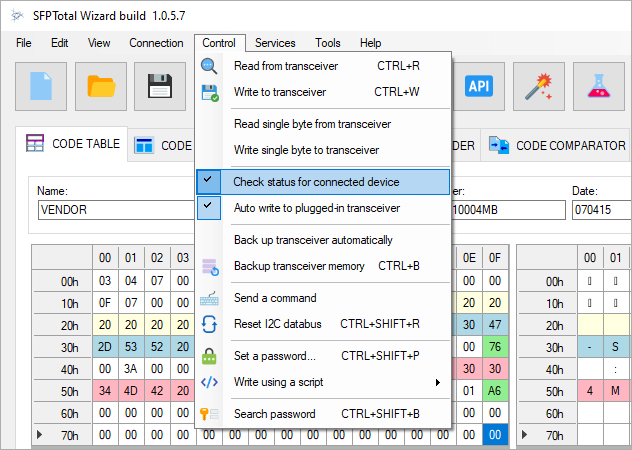
To enable this feature, select the following checkboxes:
Control - Check status for connected device
Control - Auto write to plugged-in transceiver
Establish a connection to the coding board:
Connection - Connect
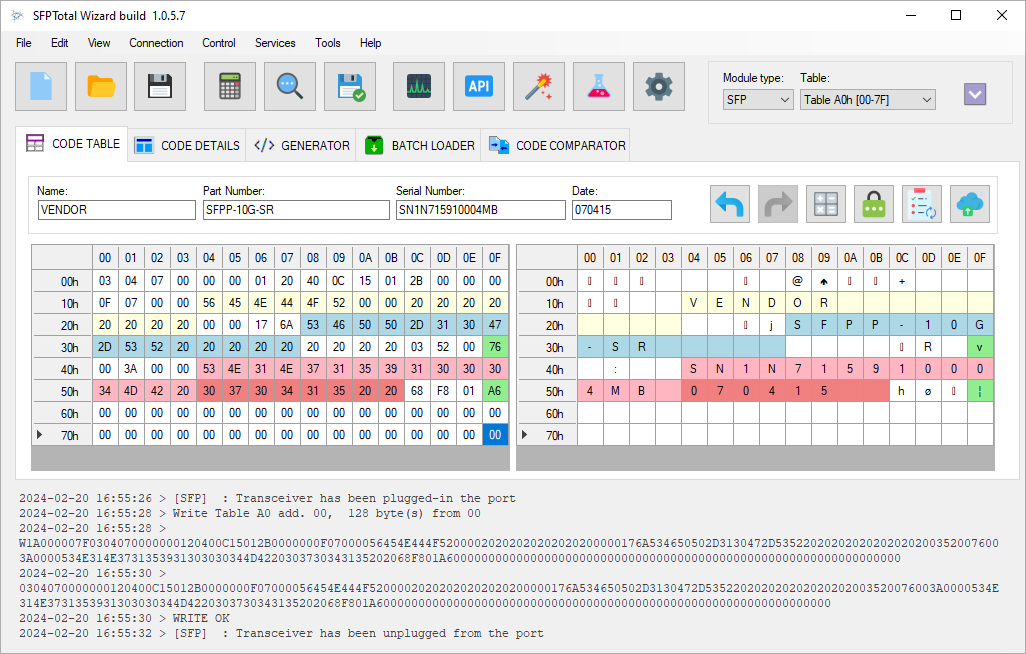
Once this mode is enabled, the software monitors the inputs that indicate whether a transceiver is connected to the coding board ports. When a connection is detected, the write operation starts automatically using the configured password settings or script.
2024-02-09 16:57:10 > [SFP]  : Transceiver has been plugged-in the port
2024-02-09 16:57:11 > Write Table A0 add. 00,  128 byte(s) from 00
2024-02-09 16:57:11 > W1A000007F0D00230100000000000000058D00000000000A004F454D202020202020202020202020200F0002C94D43323230373331562D30313020202041314268000046BD0001049854573231313530313138342020202020313530353235202068F0037C2020202020202020202020202020202020202020202020202020202020202020
2024-02-09 16:57:13 > 0D00230100000000000000058D00000000000A004F454D202020202020202020202020200F0002C94D43323230373331562D30313020202041314268000046BD0001049854573231313530313138342020202020313530353235202068F0037C2020202020202020202020202020202020202020202020202020202020202020
2024-02-09 16:57:13 > WRITE OK
To write again, remove the transceiver from the coding board port, wait for the port status to update, then reconnect it.
To disable automatic writing, clear the checkboxes selected earlier.
Note
Combining automatic writing with script based writing enables batch programming of transceivers and significantly reduces the time spent on manual operations.