User interface
The application interface is divided into several sections. The control panel includes shortcut buttons, menus for selecting the transceiver type and table address, specialized tabs and an operation log.
Menu
The main menu provides access to the application's main functions and settings.
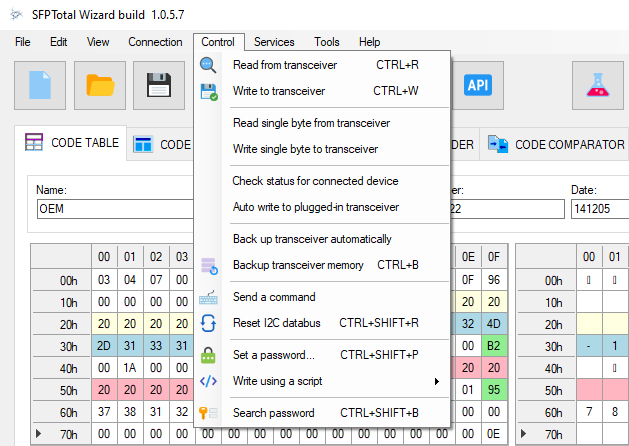
Control buttons

- Clear the editor in the CODE TABLE tab
- Load firmware from a file into the editor (CODE TABLE tab)
- Save the current firmware from the editor to a file
- Verify the firmware checksum
- Read code from transceiver memory
- Write code to transceiver memory
- DDM reading mode
- External handler button
- Shortcut to SFPTotal Labs
- Main application settings
Selecting the module type and address space
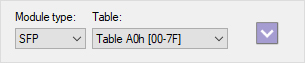
The drop-down menus select the module type and the transceiver address space that the coding board accesses when reading code into the editor or writing code from it.
Editor area
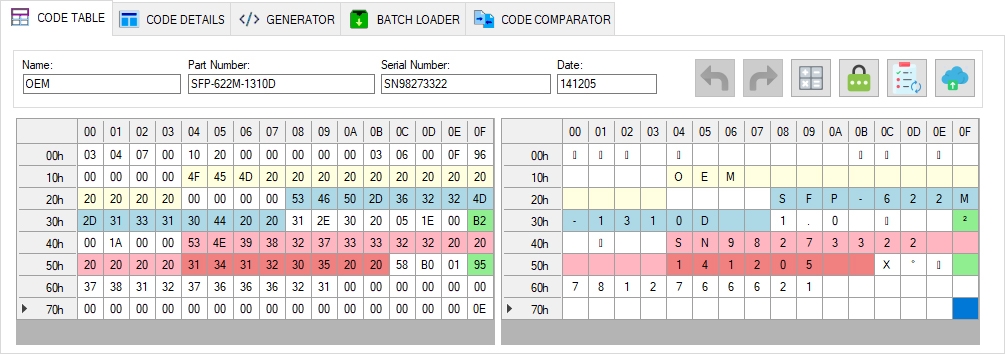
The 128-byte editor area displays a segment of transceiver memory in hexadecimal (HEX) format and as ASCII characters.
The editor area supports code editing.
In the table on the left, enter the hexadecimal code of a character to change a value. Values use uppercase A–F and the digits 0–9.
In the table on the right, enter characters to change values. Characters are encoded according to the ASCII standard.
Cell changes are committed when you press Enter or move the focus (cursor) to another cell.
Detailed firmware parameters
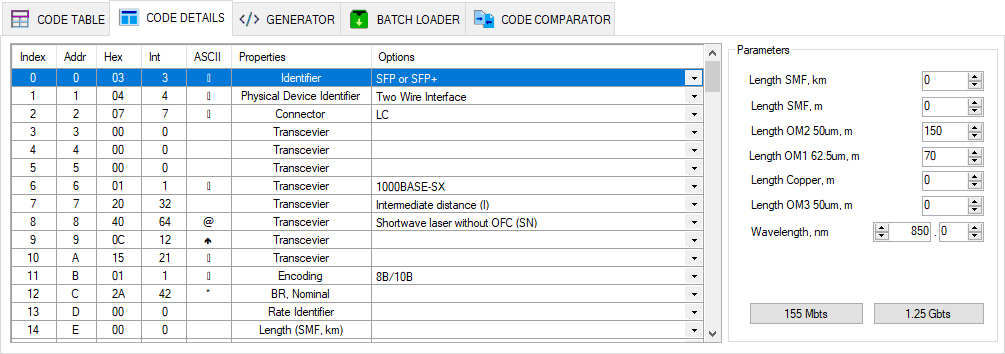
The CODE DETAILS tab provides a byte by byte view of the transceiver's main memory page and decodes its parameters according to the MSA specification.
Operation log
Contains the application's operation history. The history is written to the log.txt file.
Status bar
Shows the progress of the current operation, the connected device type, the connection status of the SFPTotal server, and a link to the standard for the selected transceiver type.
The purpose of each interface element is described in the corresponding sections of this guide.