SFPTotal Mini
The SFPTotal Mini coding board programs the memory of SFP28, SFP+ and SFP transceivers, including SFP RJ45, AOC and DAC. It supports programming password protected transceivers according to MSA SFF-8472, as well as script based writing and programming modules with hardware write protection circuits.
The coding board is fully compatible with transceivers designed according to MSA SFF-8074.
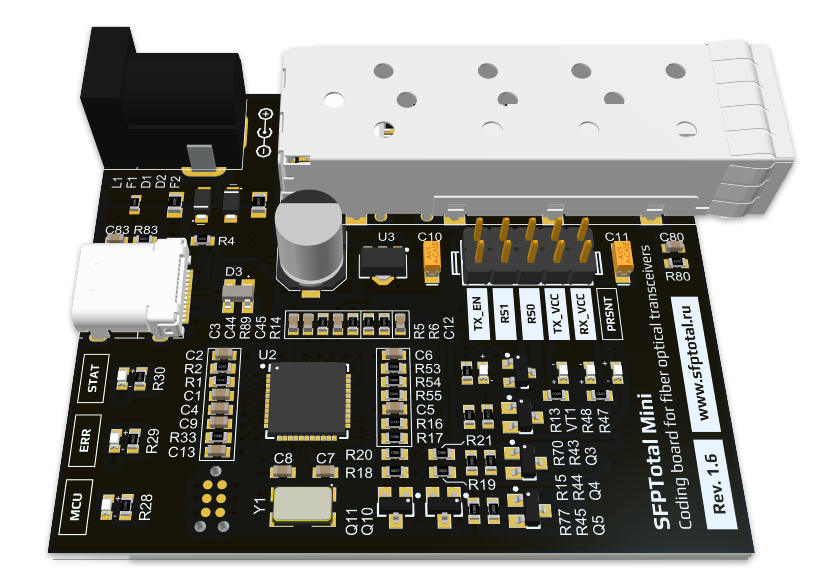
The device has an SFP port for transceivers, a USB Type C connector for connection to a PC, LED indicators, power control jumpers, and a connector for an external 5V DC power supply.
Applications
The coding board is used for the following tasks:
- Programming SFP RJ45, 1G SFP, 10G SFP+ and 25G SFP28 optical transceivers;
- Programming AOC and DAC cables;
- Ensuring module compatibility with network equipment from different manufacturers;
- Programming write protected transceiver memory;
- Reading transceiver diagnostic information in real time;
- Setting the channel of DWDM SFP+ tunable transceivers;
- Changing PHY controller settings;
- Rebranding OEM transceivers.
Main advantages
- Compact size;
- Full support for the SFP form factor on a single device;
- No restriction to a particular transceiver manufacturer;
- Flexible control of write speed and settings;
- Support for programming transceivers with a password;
- Access to nonstandard transceiver memory addresses;
- Programming transceivers with hardware write protection;
- External power supply support for high power transceivers;
- Hardware password search support;
- Technical support from the manufacturer.
Quick start
Installing the device driver
For correct operation, install the device driver before connecting the device for the first time. It is available on the download page.
Windows 10 / 11 include drivers for SFPTotal Mini by default. Simply connect the device to the computer and wait for automatic installation to complete.
If the operating system does not include a driver or special driver installation policies apply to new devices, follow the driver installation instructions.
Some versions of Windows require a system restart after driver installation for the virtual serial port device to work correctly.
Software
Use the official SFPTotal Wizard software to work with the device. It provides a convenient interface for editing, reading and writing transceiver memory.
No preliminary device configuration or calibration is required to start using the application.
For complete software instructions, see the User Guide.
Connection settings
Connect the coding board to the computer's USB port using the supplied USB Type C cable. The operating system detects a new device when it is connected for the first time.
By default, no connection configuration is required. The application automatically detects the coding board connected to the PC.
If the application was previously configured for a direct device connection, open the menu Connection - Connection Settings.
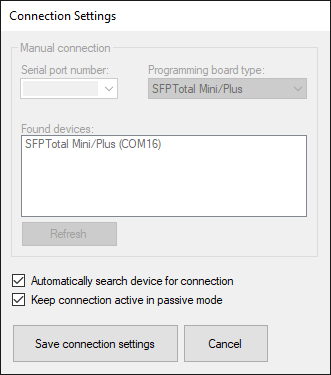
Reset Serial port number, select Programming board type for your device and select Automatically search device for connection to connect to the coding board automatically.
Save the connection settings by clicking Save connection settings.
Device activation
The SFPTotal Mini is supplied with limited functionality and requires activation before use.
See the section Device activation.
Connecting a transceiver
Connect the transceiver to the SFP port inside the metal cage. When inserting it, the label on the module casing must face upward.
Insert the transceiver into the port and push it in gently until it clicks. The latch on the transceiver casing must engage with the port cage.
When the transceiver is correctly installed, the STAT LED stops flashing and stays on. The coding board is ready for use.
To remove the transceiver, swing out its bail to release the latch, then hold the sides of the module with two fingers and pull it out of the port. Do not pull on the bail, as it may break.
Controls
The coding board has the following status indicators and controls:
LED indicators
-
The POWER/MCU indicator lights up when the device is connected to a computer.
-
The STATUS/STAT indicator flashes when power is on and the device is waiting for a transceiver in the SFP port. It stays on when a transceiver is connected.
-
The ERROR/ERR indicator stays on when the device detects a data bus fault or lockup.
-
The TX_ENA indicator lights up when the transmitter power pins are connected to the power supply.
-
The RX_ENA indicator lights up when the receiver pins are connected to the power supply.
-
The PRSNT indicator lights up when a transceiver is connected to the coding board port.
Jumpers
-
Opening TX PWR/TX_VCC disconnects transmitter power.
-
Opening RX PWR/RX_VCC disconnects receiver power.
-
Opening TX_EN enables Low power mode: the laser is off or operates at minimum power. Closing the contact disables low power mode.
-
Closing RS0 and RS1 pulls the corresponding transceiver pins to ground.
Control commands
The SFPTotal Mini operates using a proprietary command protocol supported by SFPTotal Wizard.
SFPTotal protocol commands provide access to the device's full capabilities for complex programming procedures or specific transceiver control registers.
Note
-
Component labels on the PCB may differ depending on the hardware revision. See the accompanying documentation for details.
-
Embedded firmware updates are available only through SFPTotal service. Contact Support to check whether an update is available.
-
An external 5V DC 1A power adapter is recommended for high power transceivers. Connector polarity is marked on the device PCB.
-
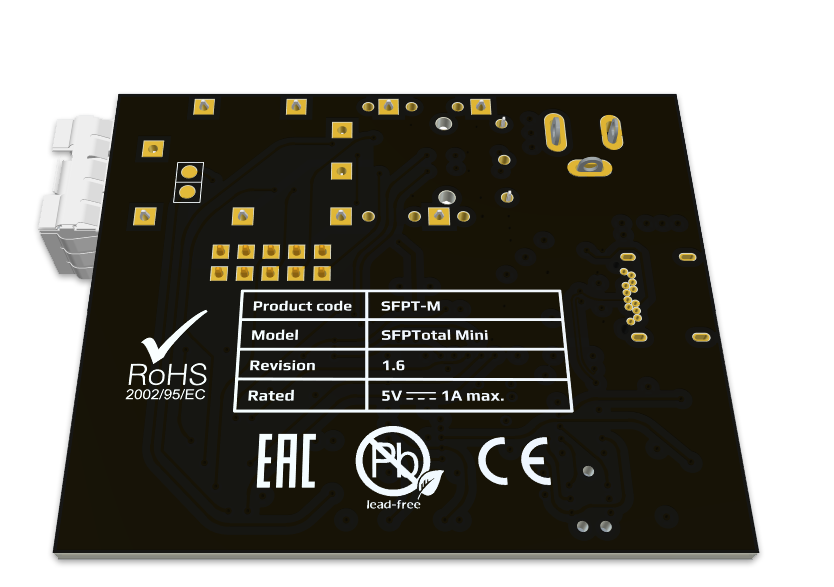
Hardware revision 1.6 includes additional electrostatic discharge protection to improve reliability.