Working with code fragments
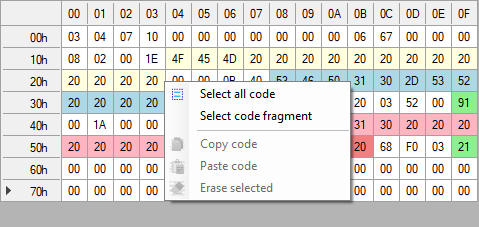
The application supports operations on code fragments in the HEX editor.
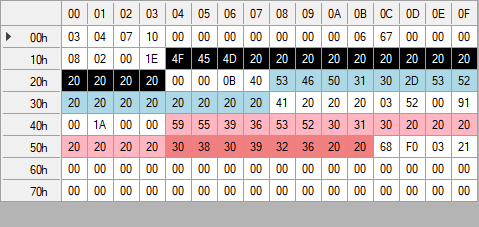
- Selecting a fragment
- Copying code
- Pasting code
- Clearing code
To use these functions, right-click the HEX editor on the left side of the application window to open its context menu.
The selected area is highlighted in black.
Right-click the selected fragment to open the context menu again.
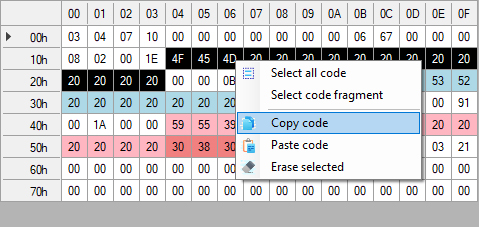
Use the available operations to copy, paste or clear the selected fragment.
-
Copy code copies the selected area's HEX code to the clipboard.
-
Paste code imports HEX code from the clipboard into the selected area. If the clipboard contains more data than the selected area can hold, only the data that fits the selection is pasted.
-
Erase selected fills the selected area with zeros.
Note
-
Use the keyboard shortcuts CTRL+A and CTRL+V to select the entire editor area and paste code.
-
Use the keyboard shortcuts CTRL+A and CTRL+C to select the entire editor area and copy code to the clipboard.
-
Use code fragment copying and pasting to transfer a portion of code that contains both text and binary data, for example into the vendor-specific area of transceiver firmware.